
Audio System
Overview
Enjoy music and TV audio throughout the home using the Sonos sound system in the main living area and pool patio.
Getting Started
Connect to the Mojave Modern Guest Wi-Fi network to get started.
Next, download the Sonos app on your iOS or Android device.
Once installed, open the app; it will automatically detect your system - Audio Source “Mojave Modern”.
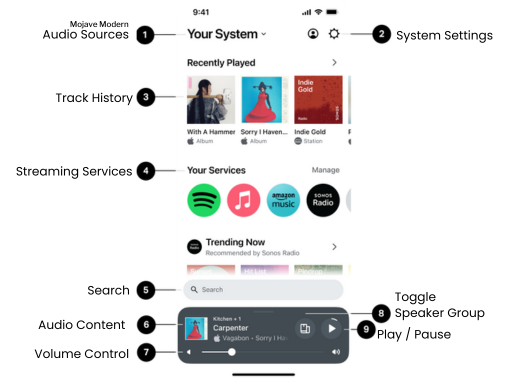
*This image shows the Sonos app home screen where you can access music and speaker controls.Playing Music
The Sonos app supports over 100 streaming services.
You can browse, search, and play all your music in one place without switching between apps.
To play music:
Open the Sonos app
Choose a music service or station
Press play
Grouping Speakers
You can listen in multiple areas simultaneously, including the Main Room and Pool Patio.
To group speakers:
Tap the speaker icon in the app
Select the rooms where you want sound
Adjust volume for the entire group or individual rooms
TV Audio
The main room speakers can play audio from the television or from your music selection.
Please note:
Turning the TV on will switch the main room speakers to TV audio
The speakers will default to the last audio source used
If you want to listen to music and the audio last used was from the TV, open the Sonos app and switch the audio source to music.

This short video demonstrates how to use the Sonos app & its features like music playback, speaker grouping, and volume control.
Helpful Tips
Keep your phone connected to Wi-Fi for the best experience
Volume can be adjusted per room or across all speakers
Outdoor speakers are automatically disabled during quiet hours from 10PM to 7AM daily
Need Help?
If you have any trouble using the audio system, please message us anytime and we’ll be happy to help.